Report Menu Buttons for Completed Reports (Gold Suppliers)
Completed reports (i.e. reports that have finished running) can be viewed on the screen by waiting for the report to process, or by going to the History List.
Report Menu Buttons
The report menu buttons are located below the report menu groups, and will only be displayed when viewing a report. A different set of report menu buttons are displayed when running a report.
The report menu buttons that will be available to you are shown below.

In general, when you click a report menu button it will open a new frame that contains the functions or features specific to the button. There are a few exceptions, for instance the ‘Delete’ function will delete the report directly without opening a frame.
A description of the various report menu buttons available on the View Report page can be found below.
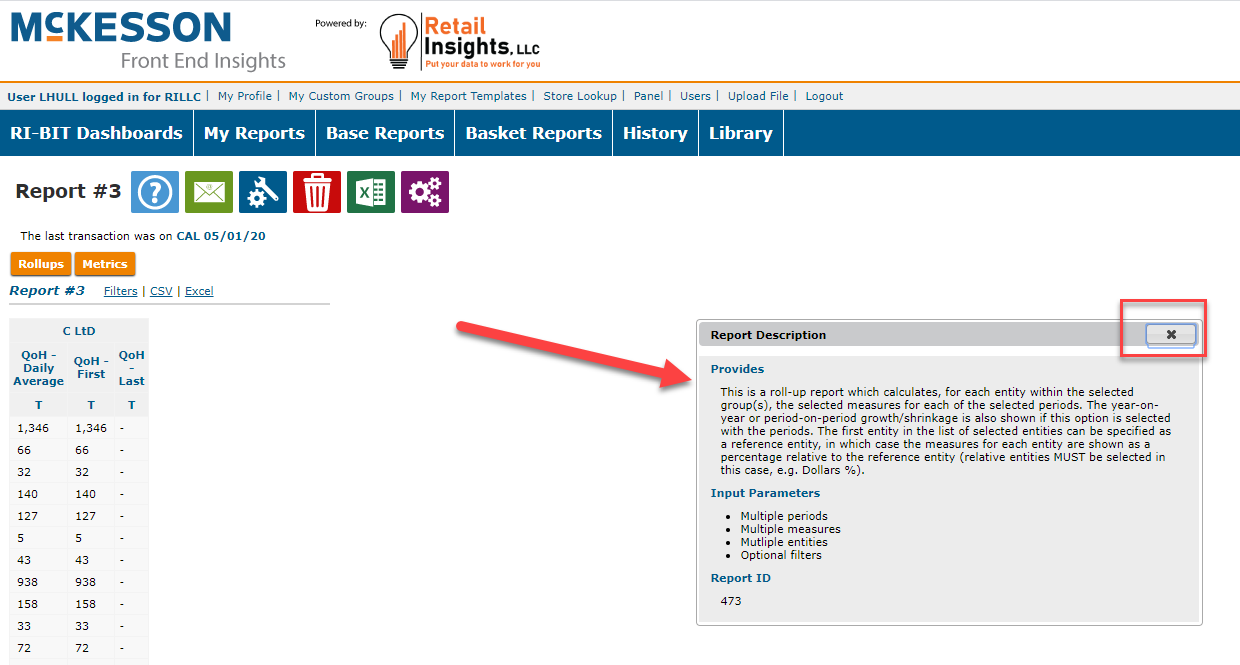
 Report Description - Opens a frame that provides a short description of the report type.
*Click the button again to close/hide the frame.
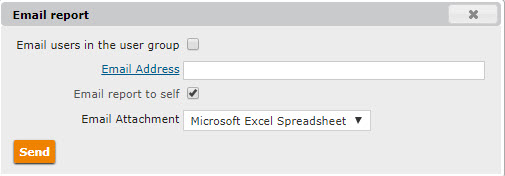
 Email Report - Opens a frame that allows the user to email the report currently being viewed. You have three choices on how to email the report:
- Check the box that will email the report to all users within your group.
- Manually enter an email address, separating multiple email addresses with a comma.
- Email the report to yourself by checking the “Email report to self” box.
Once you have selected the proper recipients, you can change the file format that will be sent by clicking on the Dropdown arrow and selecting the desired format. After populating the appropriate boxes, click on the Send button to send the report.
*Click the button again to close/hide the frame
 Toggle Report Filter Tools - Opens a frame that gives you access to all the report pickers. You have the ability to make changes and save as a new report, or update the existing report with any changes you make.
*You cannot change the Universe for your report, but you can change any pickers within the report.
 Delete currently viewed report - Permanently delete the report that is currently being viewed.
 Download report as Microsoft Excel Spreadsheet - Download the report you are currently viewing as a Microsoft Excel Spreadsheet. It is important to note that the size of the report determines how long it will take to convert the report to a Microsoft Excel Spreadsheet. It may take a few minutes to convert and download a very large report.
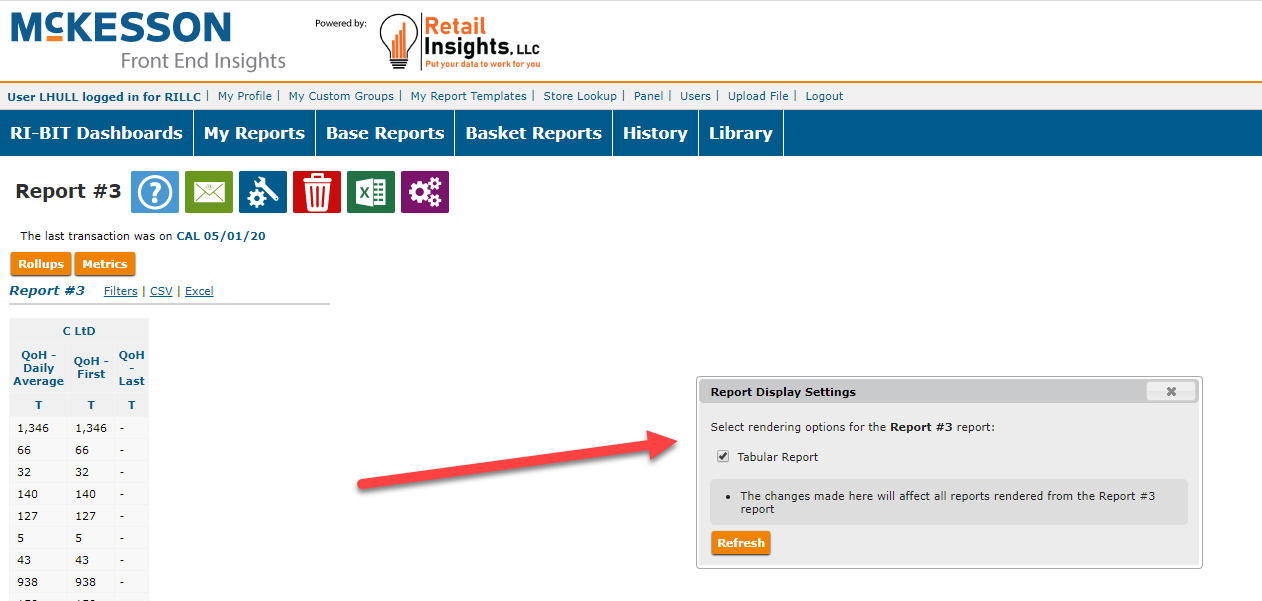
 Report Display Settings - Opens a frame that allows the user to select or deselect tabular or any charts that are available for that specific report type. At least one selection must be checked. The report will need to be rerun in order for the settings to take effect.
*Click the button again to close/hide the frame
Report Hyperlinks & Exporting
The report Hyperlinks are located to the right of the report name that is displayed. These Hyperlinks function in the same way as the Report Menu Buttons.
The report hyperlinks that will be available to you are shown below.
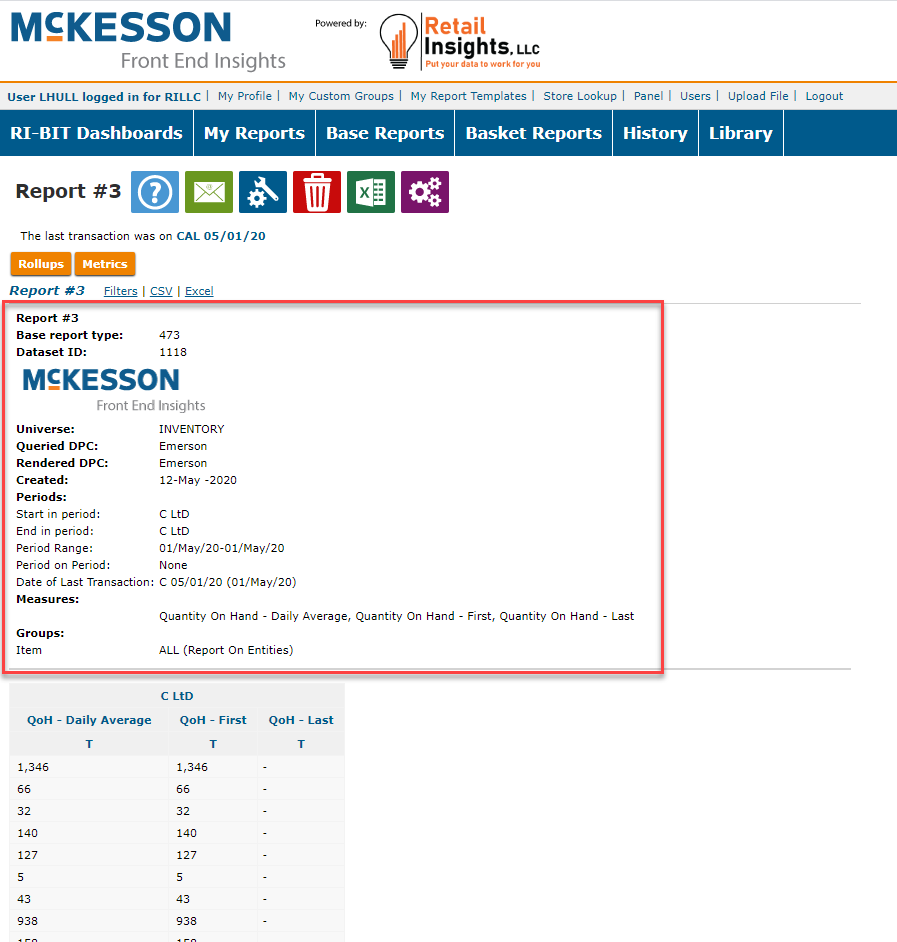
Filters - Clicking on this hyperlink will toggle a frame that displays the filters that have been applied to this report.
*Click the link again to close/hide the frame.
CSV - Click on this link to export the report that you are viewing as a CSV (Comma Separated Volume) file.
Excel - Click on this link to export the file as a Microsoft Excel file.
Want to learn more about Rollups in completed reports? Click here: Understanding Rollups