Report Picker & Entity Definitions
Time Periods
There are a number of time periods available to you within your Front End Insights portal (FEI). These time periods are defined below:
- Day – One individual day of Scan/sales data, or one individual day of SalesOut (Shipment) results.
- Week – A week is defined in FEI as 7 days, Sunday through Saturday.
- Month – A month is defined in FEI as four or five groups of 7 days.
- Year – A year consists of 52 complete weeks, also referred to as a fiscal year.
- Year to Date (YTD) – The year to date time period is defined as the first day of the new year through the most recent FULL Week.
Please note that a period will only report data once the ENTIRE period has completed. This means that if today is November 11th, and you select the MONTH of November, you will NOT get any results as the month has not closed yet.
This applies to all time periods, including Year. Again, if today is November 11th, 2020, and you select the 2020 Year time aggregate, you will not get any data as the Year 2020 hasn’t concluded.
Data Availability
The data within FEI is updated every day with new information. There is a 4-day delay in running daily reports. If today is October 9, 2020, you can run a report with results from October 5, 2020.
The weekly data is updated every Wednesday night and will be available to you by 8am EST on Thursday morning.
Historical Data
Shipment data within FEI is available beginning November 30, 2017. Inventory data is available beginning on February 29, 2020.
POS Scan data will be loaded as received from the POS providers. You can run reports at the store level for any time period through the most recent available day.
As stores are added to the portal we will load any available history that we are able to provide.
Metric Naming Conventions
It is important to understand how metrics are labeled within the universes.
Anything related to POS scan data that occur in an independent retail pharmacy are labeled as Scans. Scan Dollars, Scan Units, etc. These are the sales the customer makes on a patient's purchase.
Any data related to shipment or SalesOut information are labeled as Sales. Sales are transactions that occur between McKesson and a customer.
Comp Stores / Comp Customers
Within FEI you have the ability to filter reports based on comp stores or comp customers. A comp store is defined as a store that was reporting data for the entire period this year and the entire period last year. Same applies for a comp customer. The customer must have been purchasing products from McKesson for the entire time period last year, and the entire period this year.
For example, if you were running a YTD Comp Store report, the stores included in the Comp Store filter would have to report data for every week YTD for this year, and every week YTD last year.
These Comp groups are updated every week when the weekly data is updated on Wednesday nights.
Note: This data will become available when we have a complete year of customer and store data. As the portal develops, you will have additional comp filter capabilities.
Data Universes
A universe is a collection of the transactional data pertaining to a data provider or a group of data providers.
FEI contains multiple universes – one for Scan data, one for shipment (SalesOut) data, one for inventory data, and one for purchase orders.
Due to the requirements of relational databases, there must be a common element or key between the different data sources. There is no one single key between shipment data and transactional data.
Selecting Your Universe
You will select the universe that you would like to utilize when you start building your report. When you select your Base Report, you will see the default universe for that report as shown below. In this example, the Universe is “MCKESSON Sales Data”. 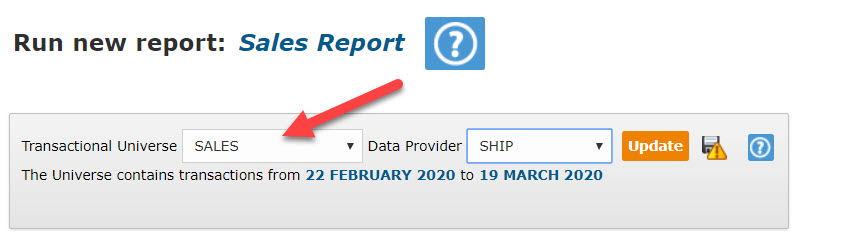
To select a different universe, click on the drop down arrow and a list of available universes will be displayed as you see below:

Simply click on the universe that you would like to use. In this example we selected the MCKESSON Sales Data universe
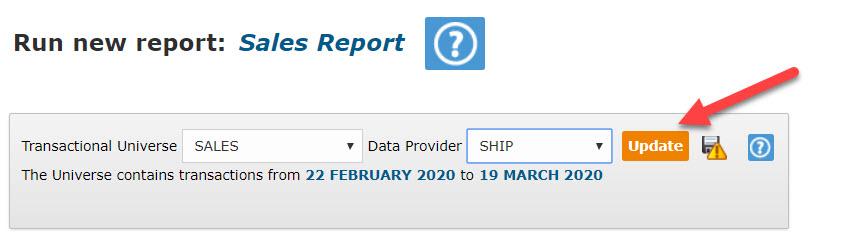
Once you have selected the universe that you would like to use, click the Update button. Your screen will refresh to the updated Universe you have selected.