How to Import a Custom File (Gold Suppliers)
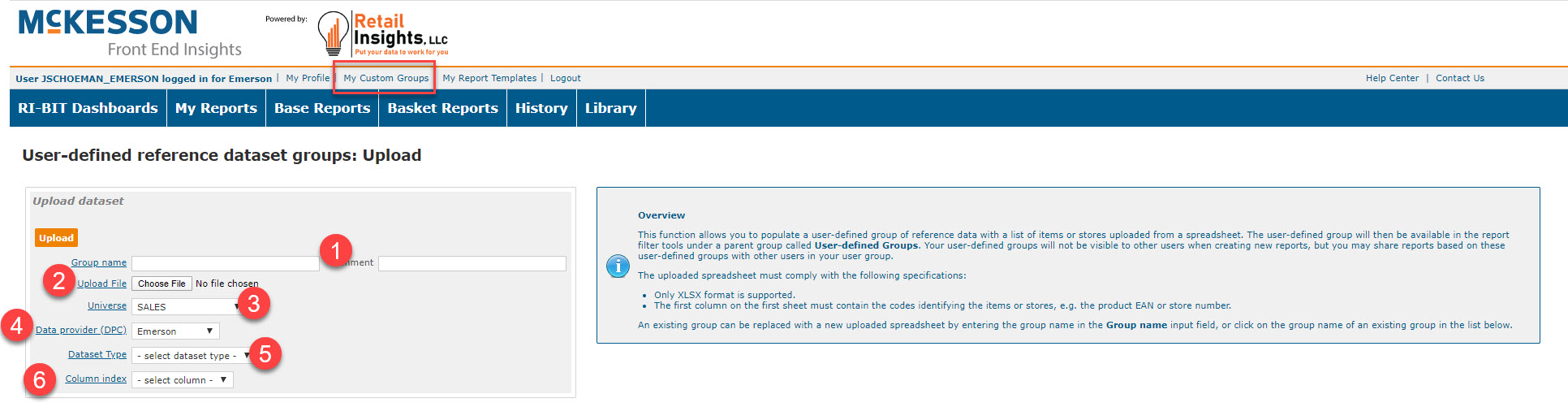
At the top panel of your Front End Insights (FEI) portal, click on the My Custom Groups link. This will bring you to a new page allowing you to upload a file to utilize when running reports. This is useful when you want to analyze a specific group of data, like items in a promotion, or a custom group of customers.
To import a custom group:
- Enter a name for your report.
- Upload your file from your computer.
- *Make sure your file only contains NCPDP numbers, Customer numbers, NDC numbers, UPC numbers, or Economost Numbers. Your list will need to be in the first column and headers are not required.
- Select the Universe you would like your custom group to be located.
- Select your Data Provider (DPC). Your company will be the only option for the DPC.
- Select the Dataset you have imported (Store or Item).
- Select the Column Index (the data that is included in your file).
Once you have entered all the information above, click the Upload button.
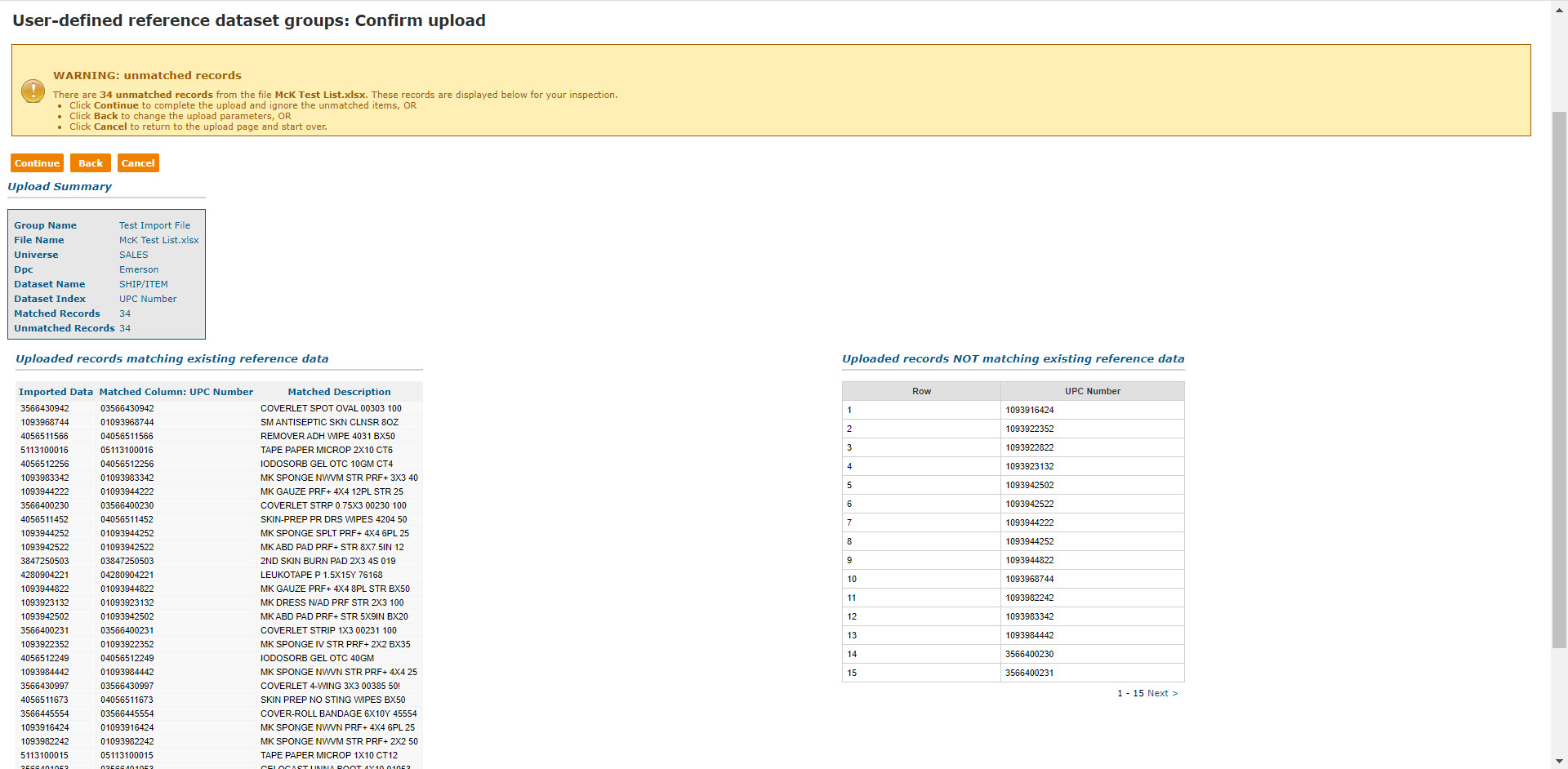
After clicking Upload, you will be routed to a new page, showing you the data points that have imported and those that haven't.
In the screenshot below, you will see the left-hand column contains all the data points that imported. The right-hand column contains the unmatched data points in your file. At the top of the page, there is a summary box which tells you exactly how many data points will import and how many will not import.
Click the Continue button to finish importing your list. Click the Back button to make edits to your previous page. Click Cancel to cancel importing your custom list.
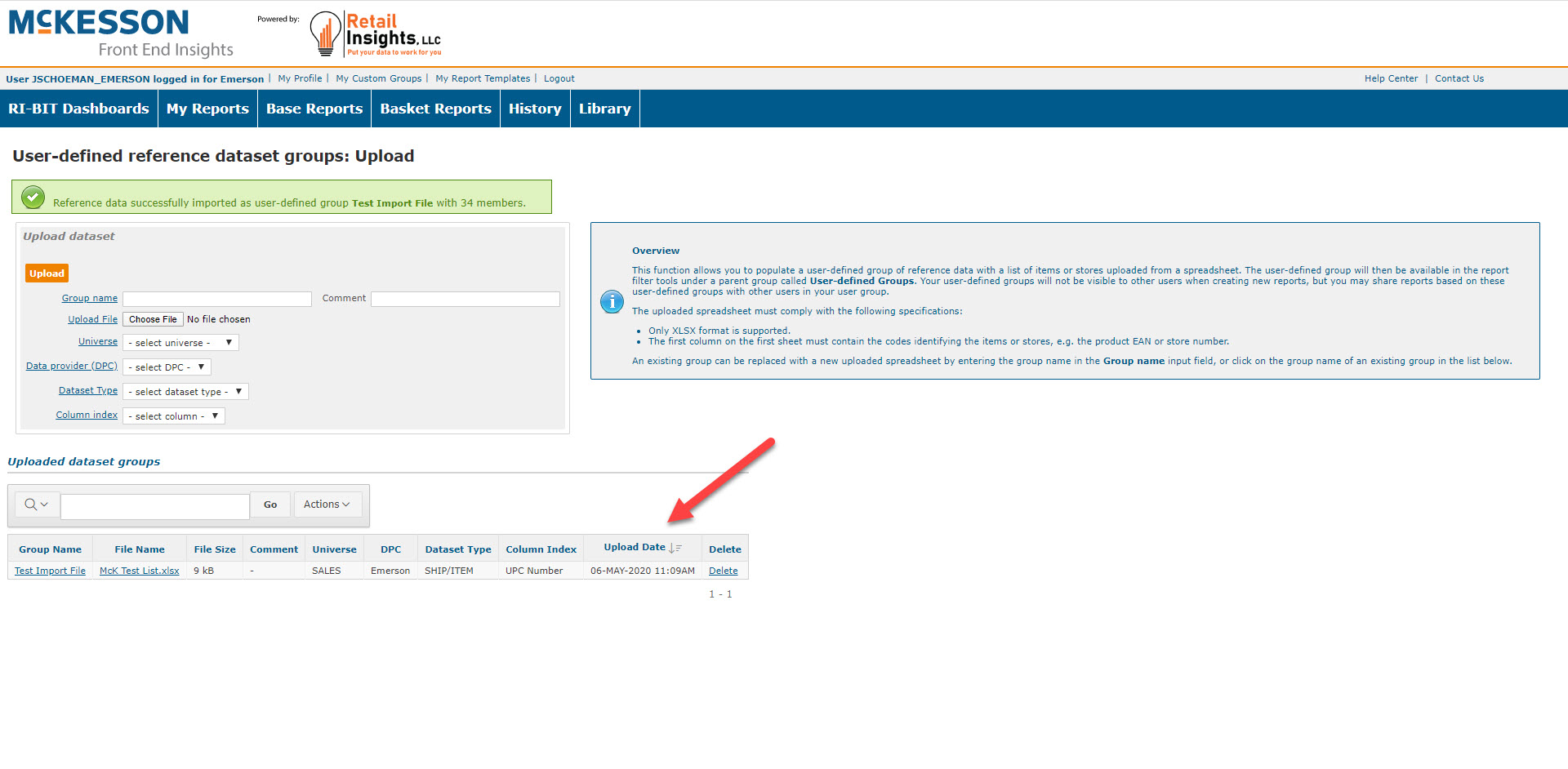
If you click the Continue button, you will be routed back to the Custom Groups page and you will see the file you imported in the Uploaded Dataset Groups section. You can view your imported files any time by clicking on the file name. You can choose to delete your file by clicking the Delete button.
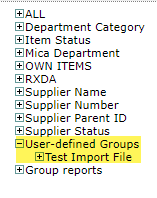
You can now use your custom file when running reports. When you run a report, you will find all your custom files located under the User Defined Group entity in your pickers:
View our articles on running reports here: